Settings
The Settings dialog applies changes when you press OK in Options.
General
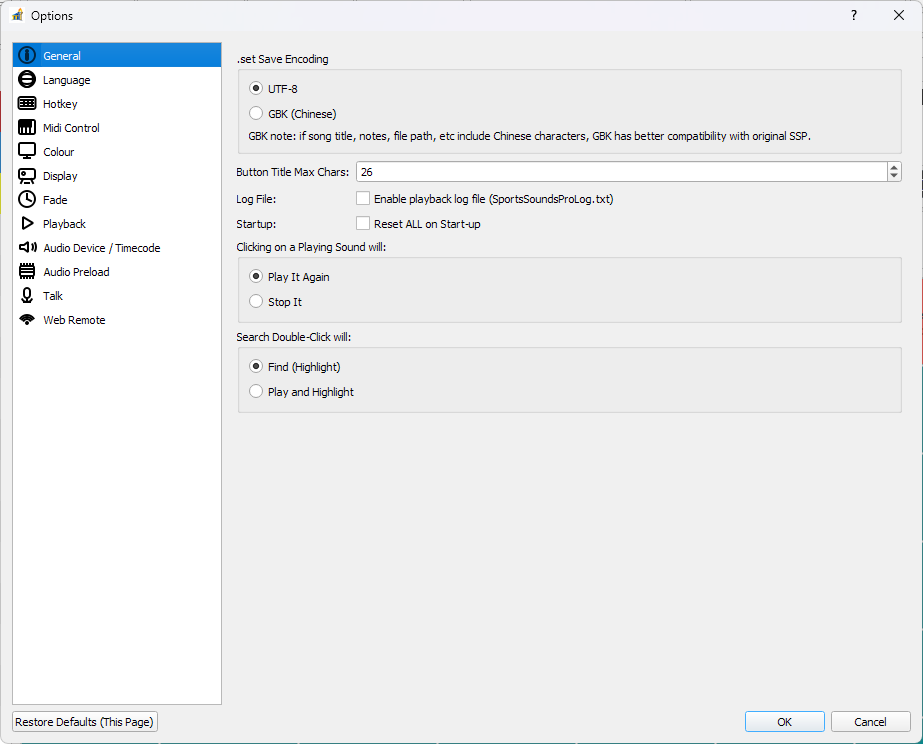
Button Title Max CharsControls UI truncation length for sound button titles in the main grid.
Enable playback log file (SportsSoundsProLog.txt)Enables writing playback log events to the SSP-style log file.
Reset ALL on Start-upResets runtime state at startup (play-state style reset workflow).
Now Playing DisplayShow Caption (Default): uses button title.Show File Name: uses filename stem.Show File Name with Full Path: uses full path.Show Notes: uses notes field.Show Caption with Notes: combines caption and notes when both exist.
.set Save EncodingUTF-8: default cross-platform encoding.GBK (Chinese): better compatibility with original SSP when set content contains Chinese characters.
Clicking on a Playing Sound willPlay It Again: retriggers behavior.Stop It: clicking currently playing slot stops that slot.
Search Double-Click willFind (Highlight): navigates/highlights only.Play and Highlight: navigates and triggers playback.
Main Transport DisplayDisplay Progress BarorDisplay Waveform.Show transport text on progress display: toggles text overlay (%, and cue in/out text in audio-file mode).
Language
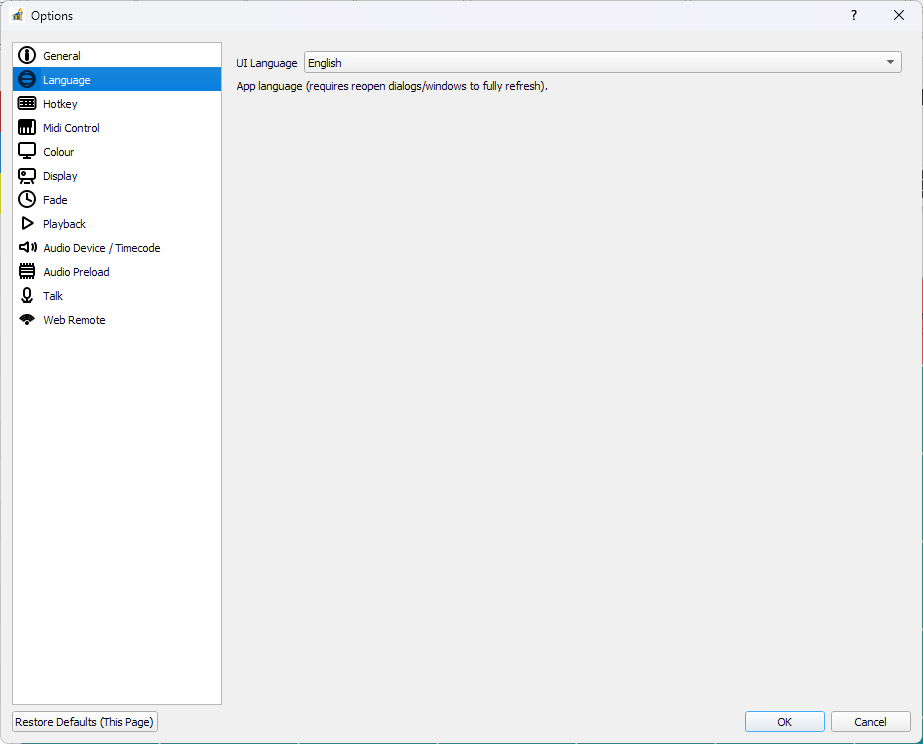
UI LanguageSwitches UI localization (
English/Chinese (Simplified)).Existing windows may require reopen/refresh to fully redraw localized strings.
Lock Screen
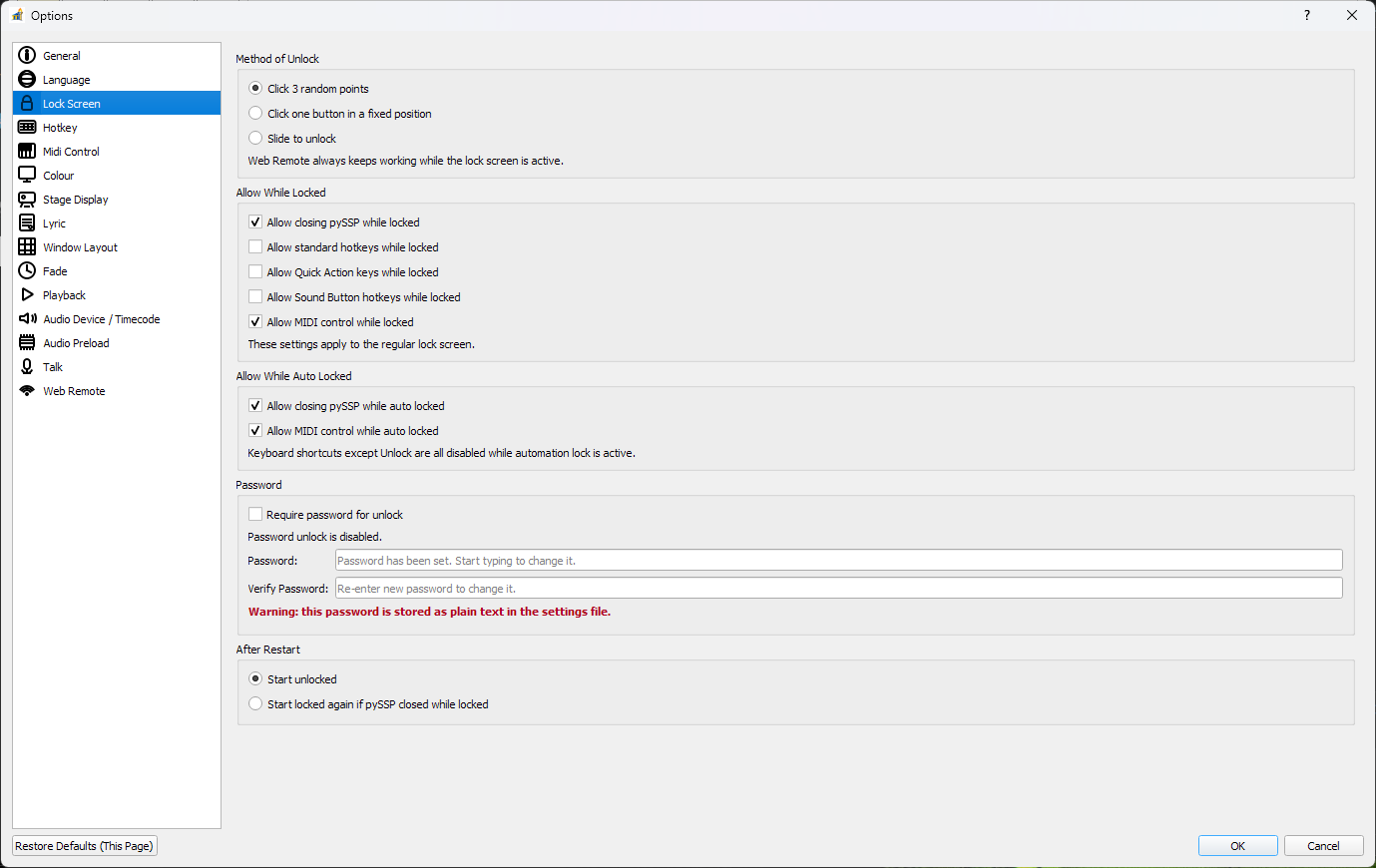
Method of UnlockClick 3 random pointsClick one button in a fixed positionSlide to unlock
Allow While Locked(normal lock only)Allow quit.
Allow system hotkeys.
Allow quick-action hotkeys.
Allow sound-button hotkeys.
Allow MIDI control.
Allow While Auto Locked(automation lock mode)Allow quit.
Allow MIDI control.
Keyboard shortcuts other than unlock are blocked during automation lock.
Require password for unlockEnables password-gated unlock.
Password is stored in plaintext in settings.
If password fields are blank when saving, existing stored password is preserved.
After RestartStart unlockedStart locked again if pySSP closed while locked
Runtime behavior details:
While locked, allowed input sources are filtered by source type (
system,quick_action,sound_button,midi).While automation lock is active, Web Remote/API control remains active.
API unlock can release automation lock.
Hotkey
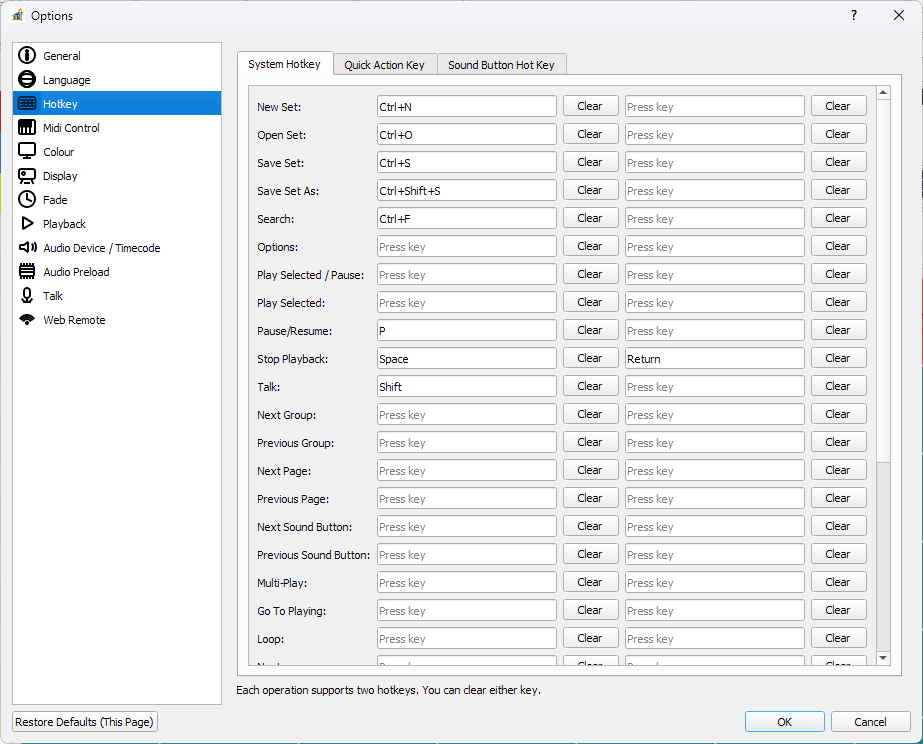
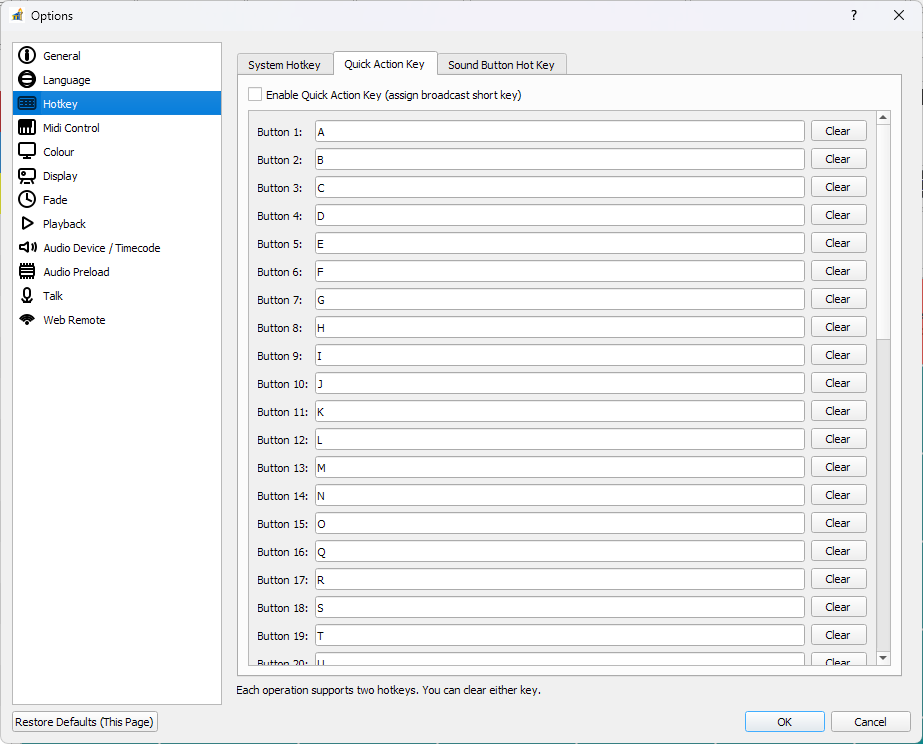
System HotkeyEach action supports two assignable keybindings.
Duplicate key conflicts are blocked at save time.
Actions available:
New Set, Open Set, Save Set, Save Set As
Search, Options
Play Selected / Pause, Play Selected, Pause/Resume, Stop Playback
Talk
Next/Previous Group, Next/Previous Page, Next/Previous Sound Button
Multi-Play, Go To Playing, Loop, Next, Rapid Fire, Shuffle, Reset Page, Play List
Fade In, X (Cross Fade), Fade Out
Mute, Volume Up, Volume Down
Lock / Unlock, Open / Hide Lyric Navigator
Quick Action Key48 keys mapped to button indexes.
Uses the currently active page context.
Can be disabled globally.
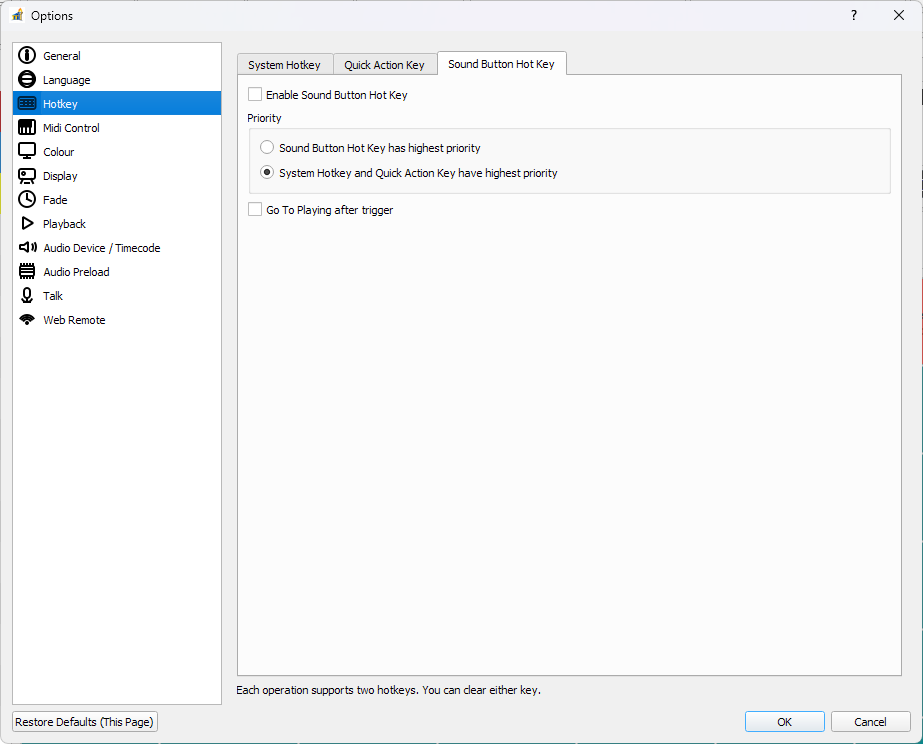
Sound Button Hot KeyEnables per-button hotkeys saved in button metadata.
Priority mode:
Sound Button Hot Key has highest prioritySystem Hotkey and Quick Action Key have highest priority
Go To Playing after trigger: auto-navigates to triggered playing slot location.
MIDI Control
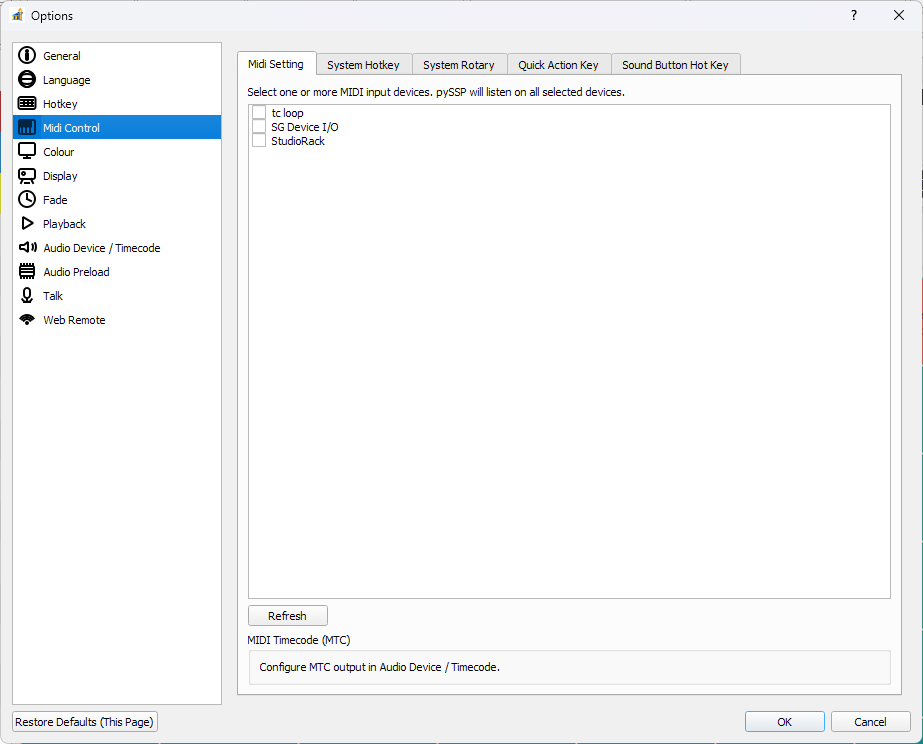
Midi SettingSelect multiple MIDI input devices.
Refresh device list.
Device used by MTC output is blocked from input selection to avoid conflicts.
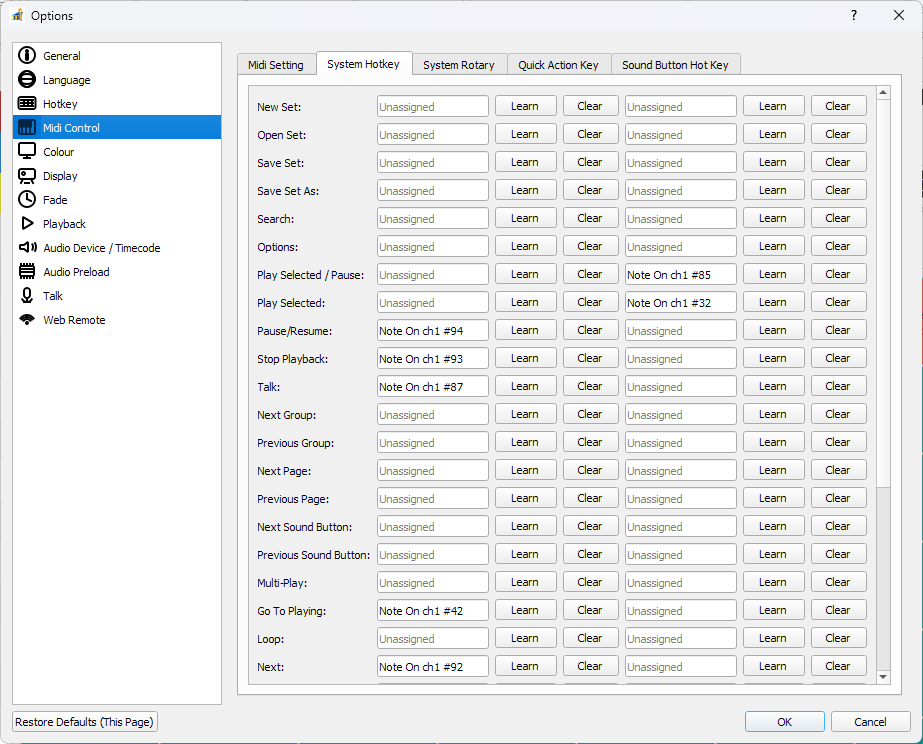
System HotkeyMIDI equivalent of the keyboard system-hotkey action list (two bindings per action).
Conflicts are validated before save.
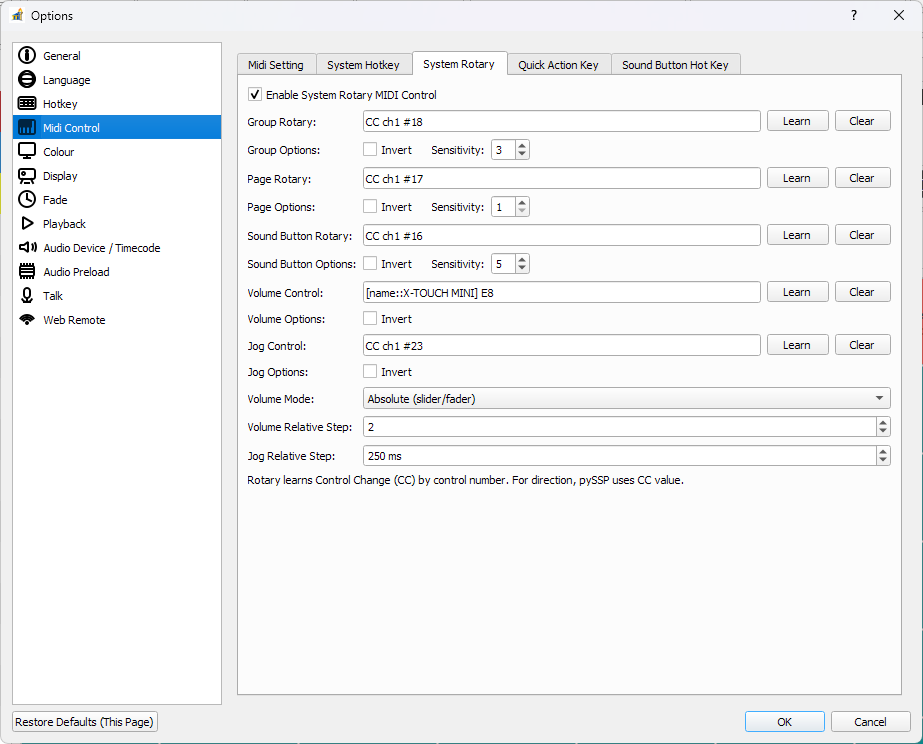
System RotaryGlobal enable switch.
Bind rotary sources for: Group, Page, Sound Button selection, Jog, Volume.
Per-control invert and sensitivity.
Volume mode:
Relative (rotary encoder)Absolute (slider/fader)
Relative steps for volume and jog.
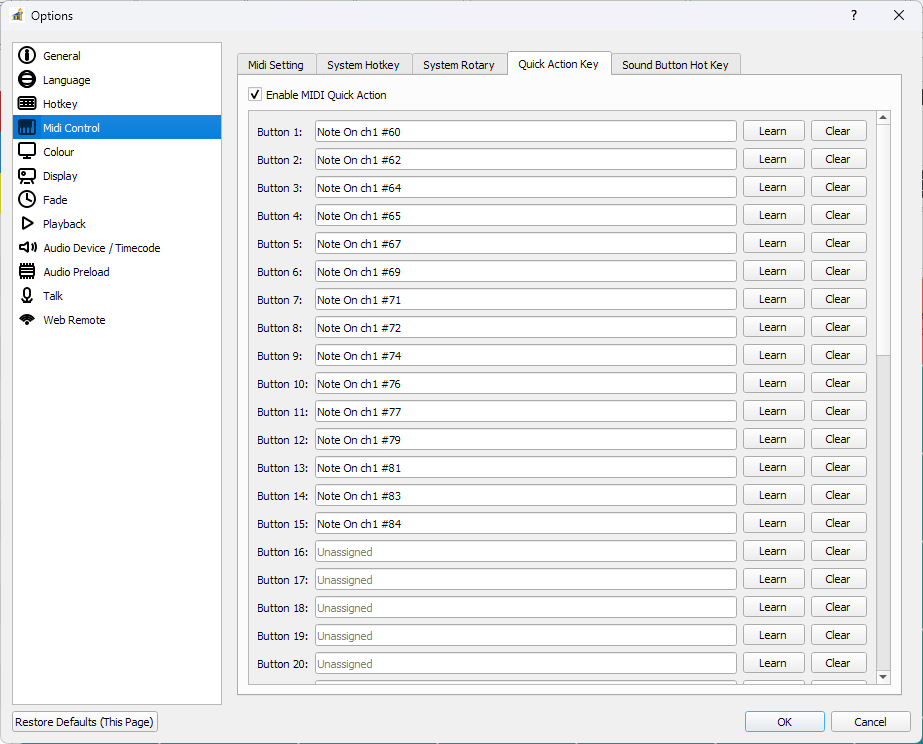
Quick Action Key48 MIDI bindings for quick actions.
Learn/Clear supported per row.
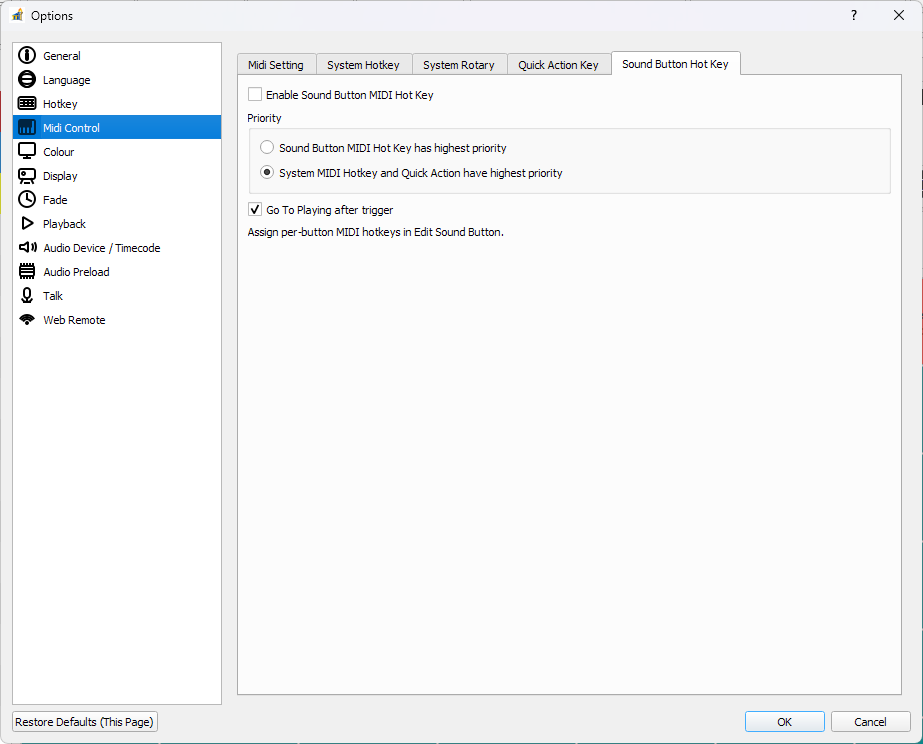
Sound Button Hot KeyMIDI per-button hotkey enable and priority behavior (same model as keyboard sound-button hotkeys).
Optional
Go To Playing after trigger.
Colour
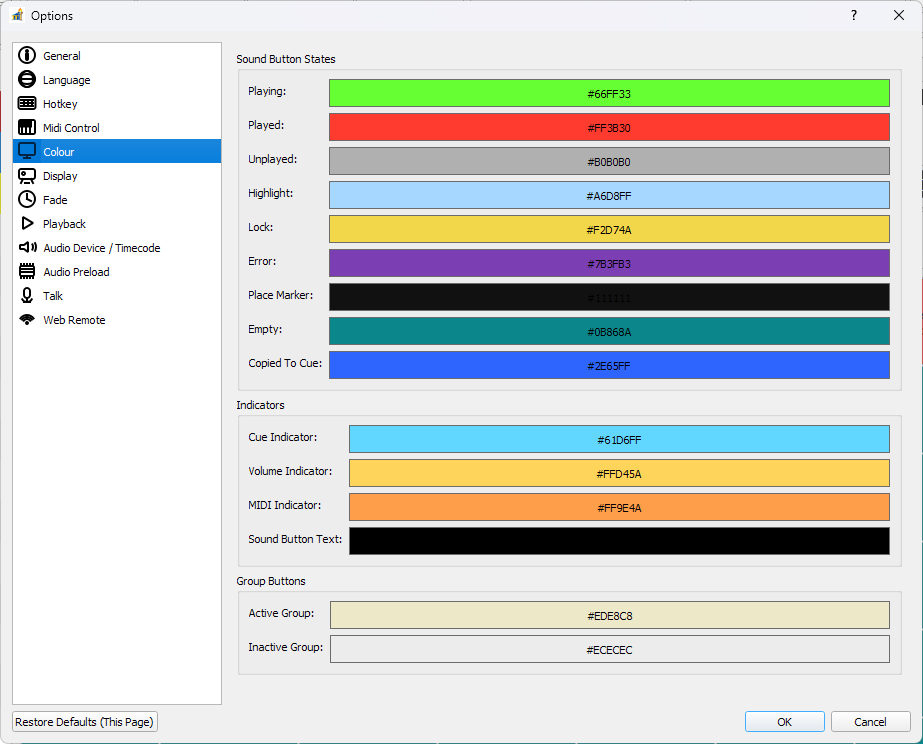
Sound Button StatesConfigurable colors for: Playing, Played, Unplayed, Highlight, Lock, Error, Place Marker, Empty, Copied To Cue.
IndicatorsCue indicator, volume indicator, MIDI indicator, lyric indicator.
Sound button text color.
Group ButtonsActive group color and inactive group color.
Stage Display
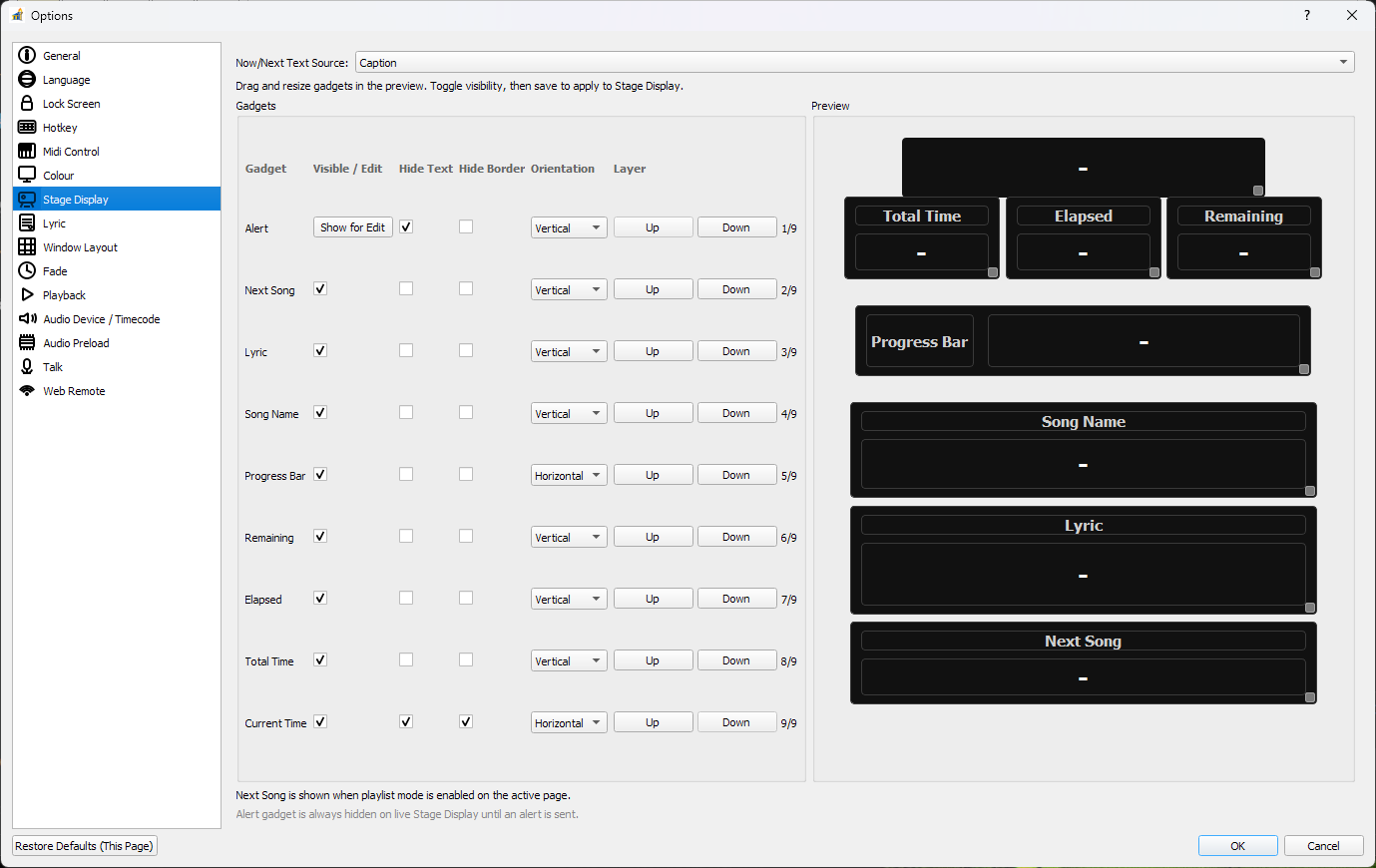
Now/Next Text SourceCaption,Filename, orNote.
Gadget layout editor
Gadgets: Current Time, Alert, Total Time, Elapsed, Remaining, Progress Bar, Song Name, Lyric, Next Song.
Per-gadget controls:
Visible/Edit toggle
Hide Text
Hide Border
Orientation (horizontal/vertical)
Layer ordering (
Up/Down)
Drag/resize in preview is persisted.
Runtime notes
Next Songis only meaningful when playlist logic has a next candidate.Alertgadget is hidden on live stage output until alert text is sent.
Lyric
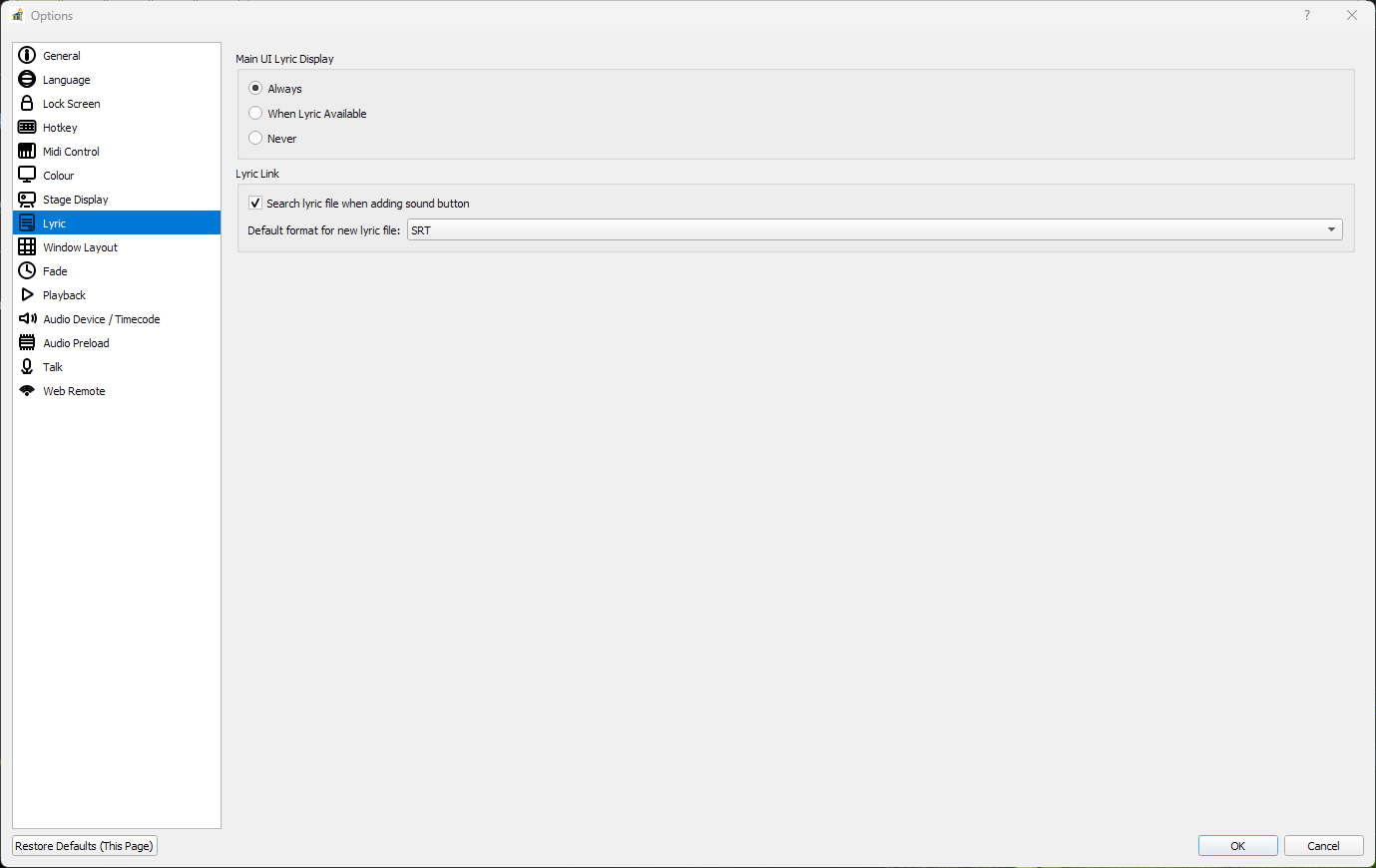
Main UI Lyric DisplayAlways: lyric row is visible even if empty/status text.When Lyric Available: lyric row visible only with non-empty lyric text.Never: lyric row and related lyric controls hidden on main UI.
Search lyric file when adding sound buttonEnables automatic lyric-file lookup during sound assignment flow.
Default format for new lyric fileChooses new lyric editor/export default (
SRTorLRC).
Window Layout
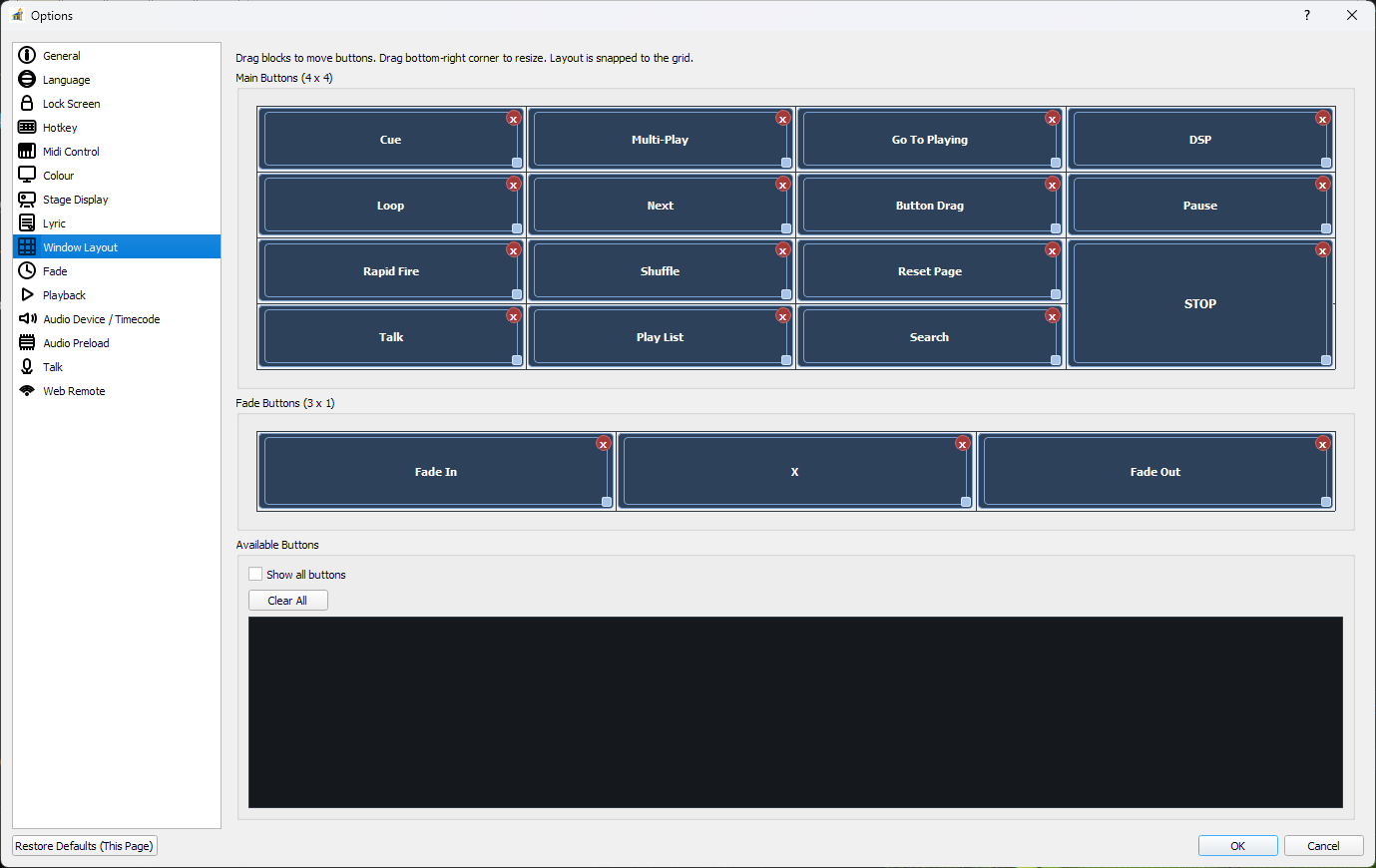
Main/Fade control layout editors
Main Buttonson4 x 4grid.Fade Buttonson3 x 1grid.
Available ButtonsDrag controls back into layouts.
Show all buttonsallows duplicate placements (cloned controls).Clear Allremoves current placements.
Runtime behavior details:
Layout is snapped to grid.
Cloned controls mirror the primary control state and trigger the same handler.
Fade
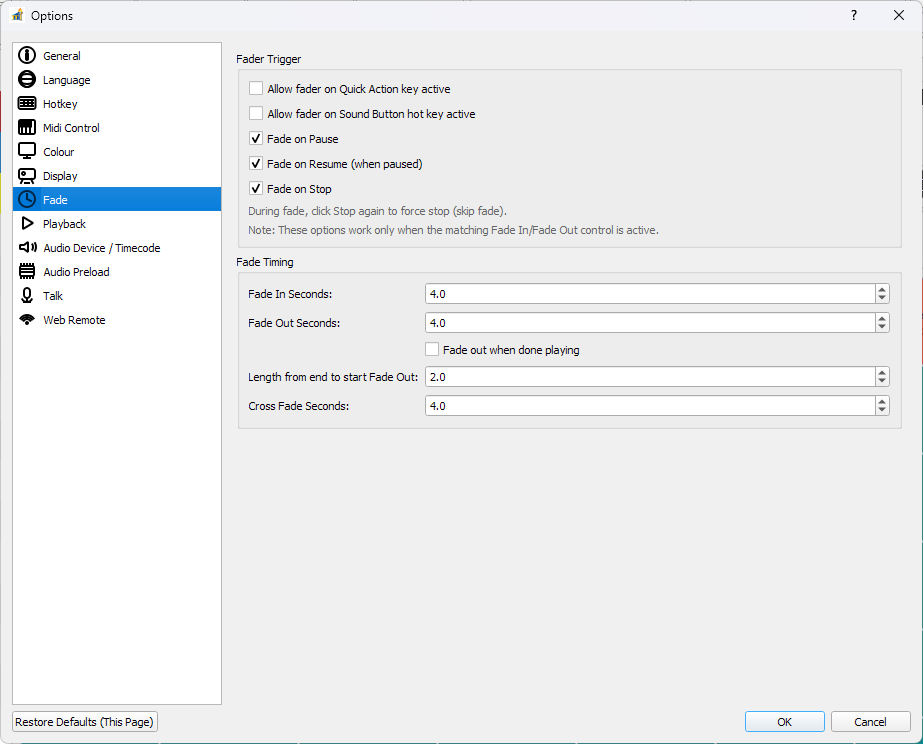
Fader TriggerAllow fader on Quick Action key activeAllow fader on Sound Button hot key activeFade on PauseFade on Resume (when paused)Fade on Stop
Fade TimingFade In SecondsFade Out SecondsFade out when done playingLength from end to start Fade Out(enabled only when fade-out-on-end is enabled)Cross Fade Seconds
Runtime behavior details:
Trigger options require relevant Fade mode buttons (
Fade In/Fade Out/X) to be active.During stop fade, pressing
STOPagain forces immediate stop.
Playback
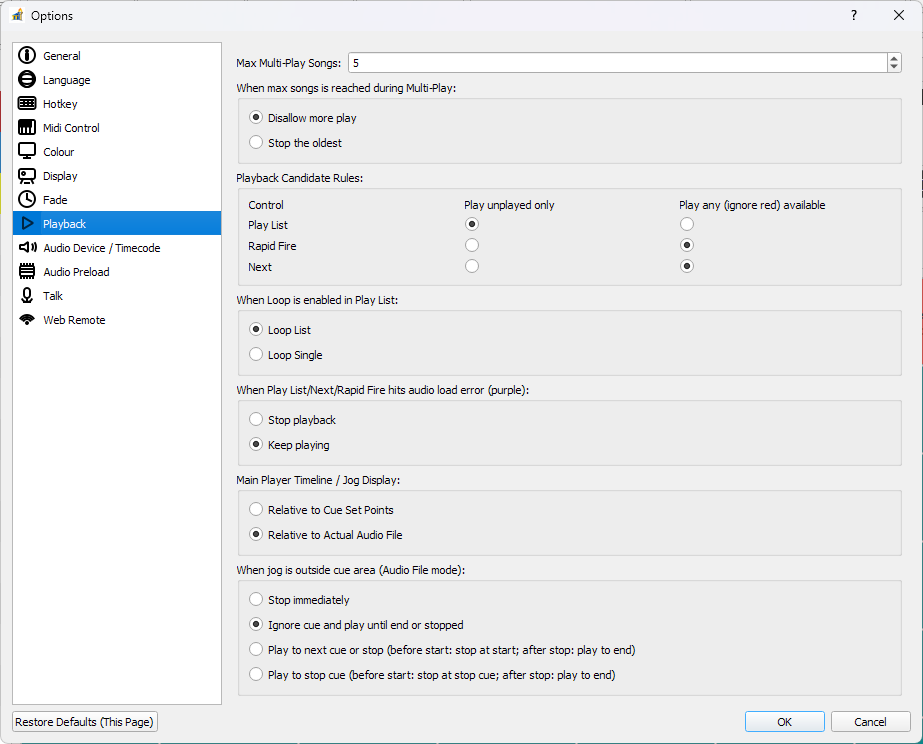
Max Multi-Play SongsUpper bound on simultaneous active tracks.
When max songs is reached during Multi-PlayDisallow more playStop the oldest
Playback Candidate RulesforPlay List,Rapid Fire,NextPlay unplayed onlyPlay any (ignore red) available
When Loop is enabled in Play ListLoop ListorLoop Single.
When Play List/Next/Rapid Fire hits audio load error (purple)Stop playbackorKeep playing.
Main Player Timeline / Jog DisplayRelative to Cue Set PointsorRelative to Actual Audio File.
When jog is outside cue area (Audio File mode)Stop immediatelyIgnore cue and play until end or stoppedPlay to next cue or stopPlay to stop cue or end
Audio Device / Timecode
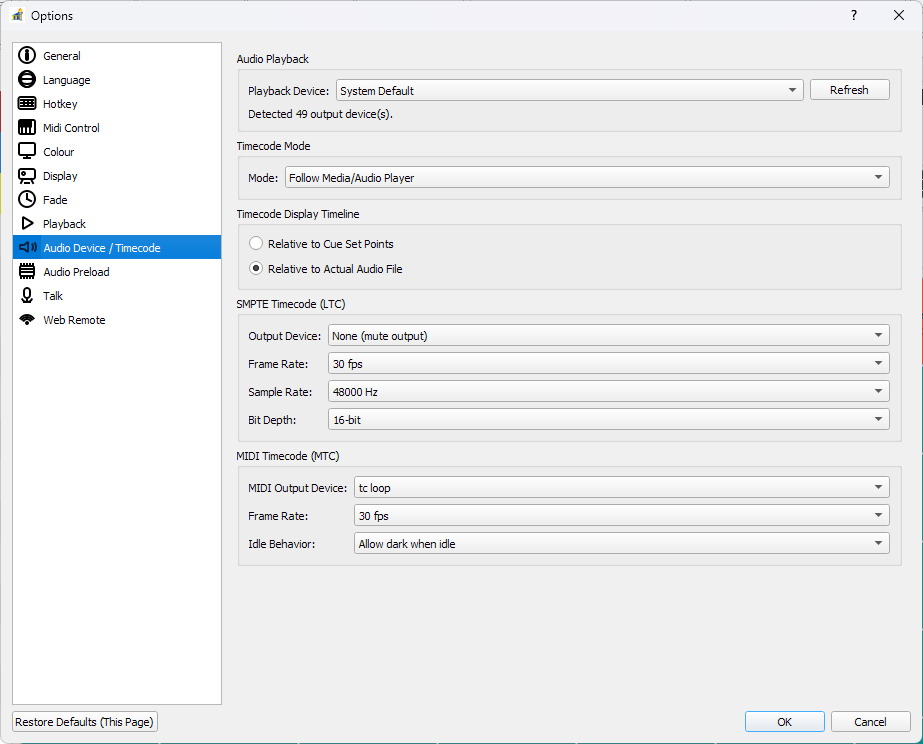
The screenshot above includes the Timecode timeline mode options (Cue Set Points / Actual Audio File) and related toggles.
Audio PlaybackPlayback device selection and device refresh.
Timecode ModeAll ZeroFollow Media/Audio PlayerSystem TimePause Sync (Freeze While Playback Continues)
Timecode Display TimelineRelative to Cue Set PointsorRelative to Actual Audio FileEnable soundbutton timecode offsetRespect soundbutton timecode display timeline setting
SMPTE Timecode (LTC)Output device target (follow playback/default/none/specific)
Frame rate
Sample rate
Bit depth
MIDI Timecode (MTC)MIDI output device
MTC frame rate
Idle behavior (
keep_streamorallow_dark)
Audio Preload
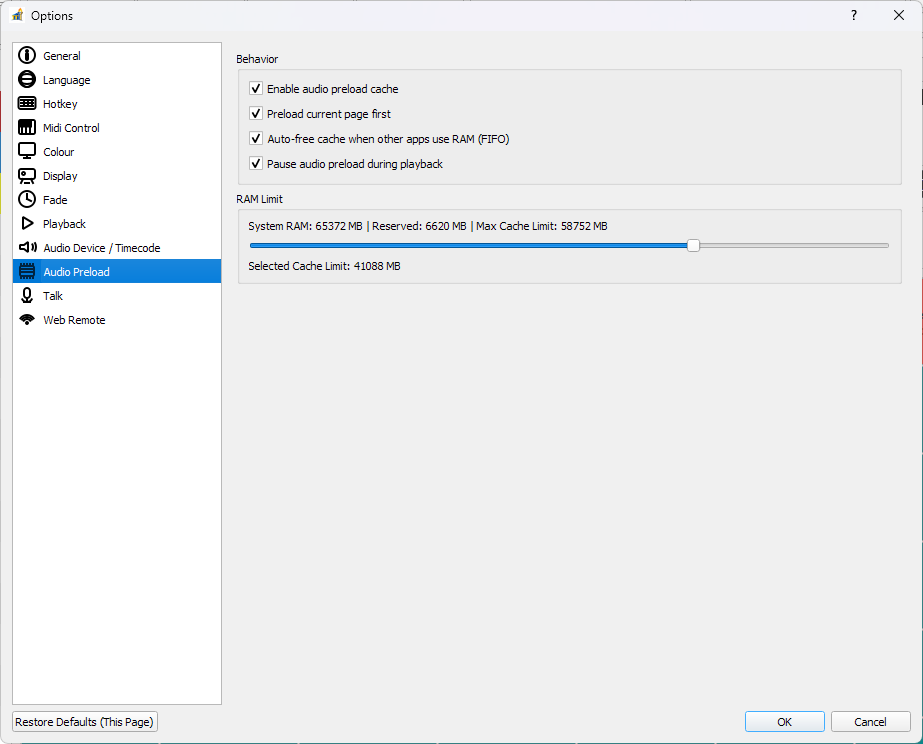
Enable audio preload cacheEnables RAM audio cache policy.
Preload current page firstQueues current-page assets for preload priority.
Auto-free cache when other apps use RAM (FIFO)Allows cache eviction under memory pressure.
Pause audio preload during playbackTemporarily pauses preload jobs while playback is active.
Selected Cache LimitRAM cap slider (step-based, bounded by computed system limits).
Talk
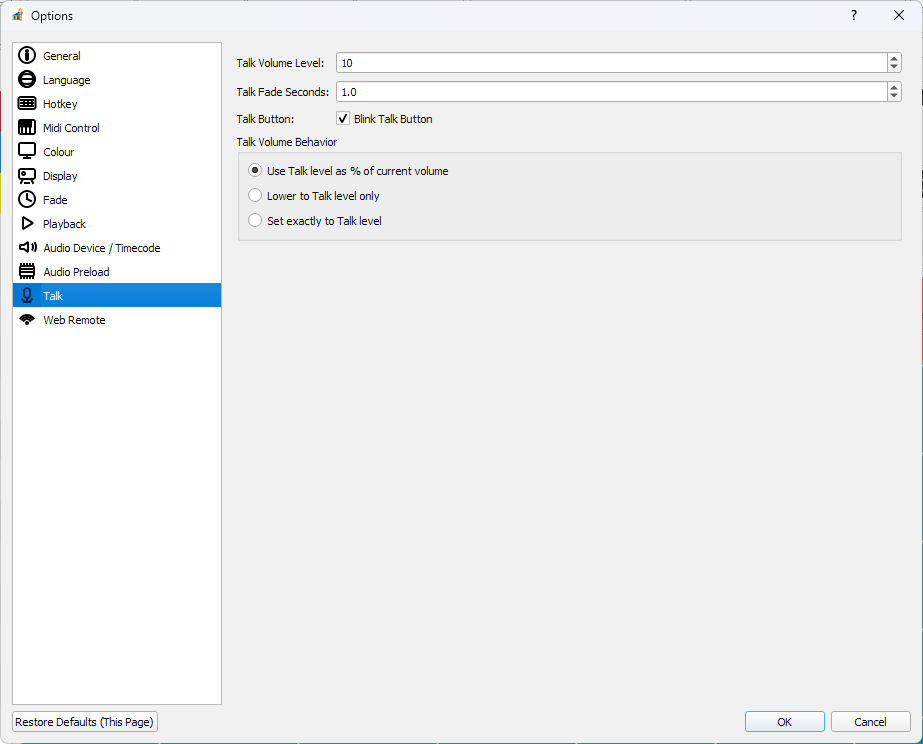
Talk Volume LevelTarget level used by talk mode behavior.
Talk Fade SecondsFade time used when talk mode toggles volume.
Blink Talk ButtonVisual blinking state for Talk control while active.
Talk Volume BehaviorUse Talk level as % of current volumeLower to Talk level onlySet exactly to Talk level
Web Remote
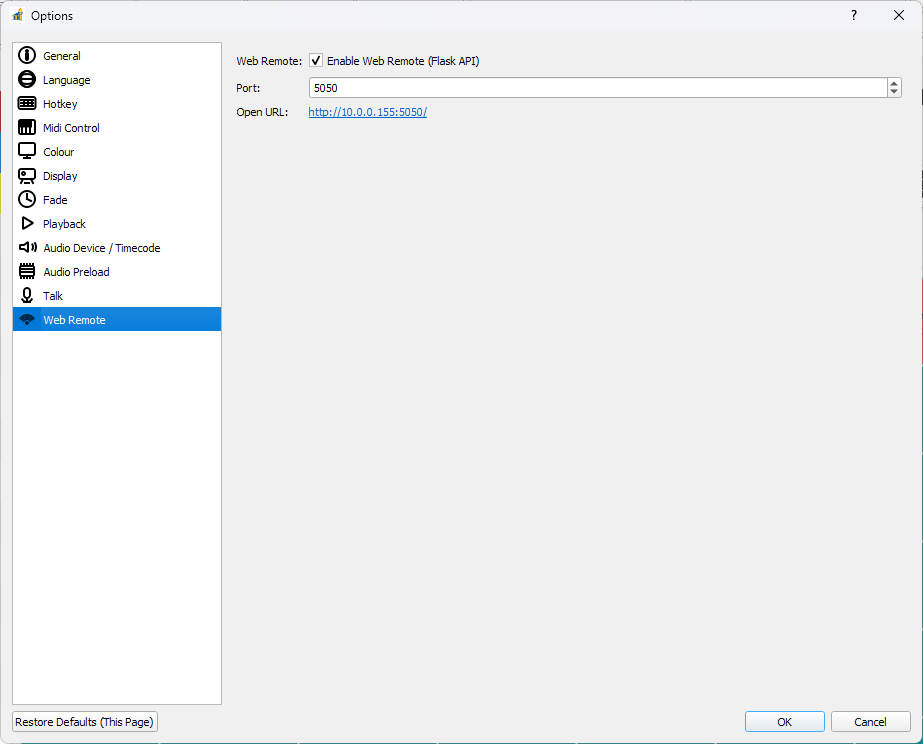
Enable Web Remote (Flask API)Starts/stops local HTTP server and WebSocket API server.
PortHTTP/Web Remote port (
1..65534).
WS Port (auto)Auto-derived as
port + 1.
Open URLDisplays clickable URL based on detected local IP and configured port.
Bitfocus CompanionsectionShows module/setup guidance and effective host/port.
Runtime behavior details:
If HTTP or WS port is already occupied by another process, startup is blocked and warning banner is shown.