Troubleshooting
Use this page for common startup and diagnostics issues on both Windows and macOS.
Startup Options
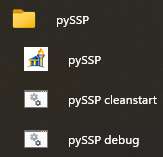
pySSP commonly ships with three launch paths:
Normal start: runs pySSP with no extra flags.
Clean start: runs pySSP with
--cleanstart.Debug mode: runs pySSP with
-debug(or--debug).
What CleanStart Means
CleanStart runs pySSP with the clean-start flag.
Windows:
Source run script:
run_ssp_cleanstart_venv.batExecutes:
python main.py --cleanstart
Packaged run script:
pySSP_cleanstart.batExecutes:
pySSP.exe --cleanstart
macOS:
Packaged launcher app:
pySSP_cleanstart.appExecutes main app with:
--cleanstart
Terminal equivalent:
python main.py --cleanstart
Use this when settings are corrupted or UI/runtime behavior is broken by previous config.
Important:
It resets app settings state (same meaning as the
--cleanstartCLI flag).Your
.setfiles and media files are not deleted by this flag.
What Debug Mode Means
Debug Mode runs pySSP with the debug flag.
Windows:
Packaged run script:
pySSP_debug.batExecutes:
pySSP.exe -debug
macOS:
Packaged launcher app:
pySSP_debug.appExecutes main app with:
-debugUsually launches in Terminal so diagnostic output is visible.
Terminal equivalent:
python main.py -debug
Use this when you need more diagnostic output to investigate startup/runtime problems.
Important:
It enables debug-mode logging/diagnostic behavior (same meaning as
-debug/--debugCLI flags).It is for troubleshooting; normal operation should use the standard launcher.
Quick Recovery Flow
Close pySSP.
Run
CleanStartonce.If issue remains, run
Debug Modeand capture the error/log output.Re-test with a known-good
.setto isolate whether the issue is config-related or set-specific.