Lyric, Stage Display, and Timecode
This page summarizes lyric workflow, stage display behavior, and how timecode works during playback.
Lyric Workflow
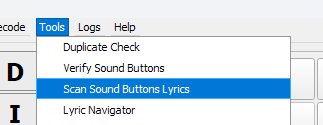
When assigning audio to a sound button, pySSP can scan for matching lyric files.
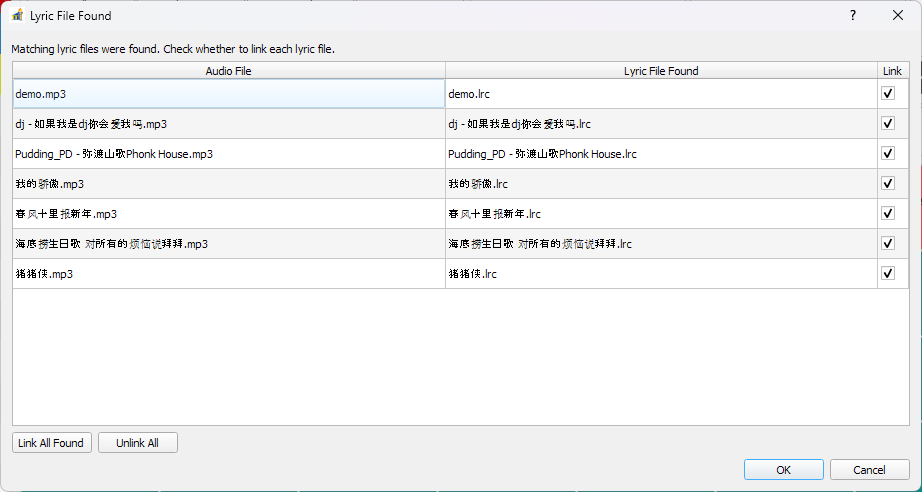
If a lyric file is found, pySSP shows the match/selection window.
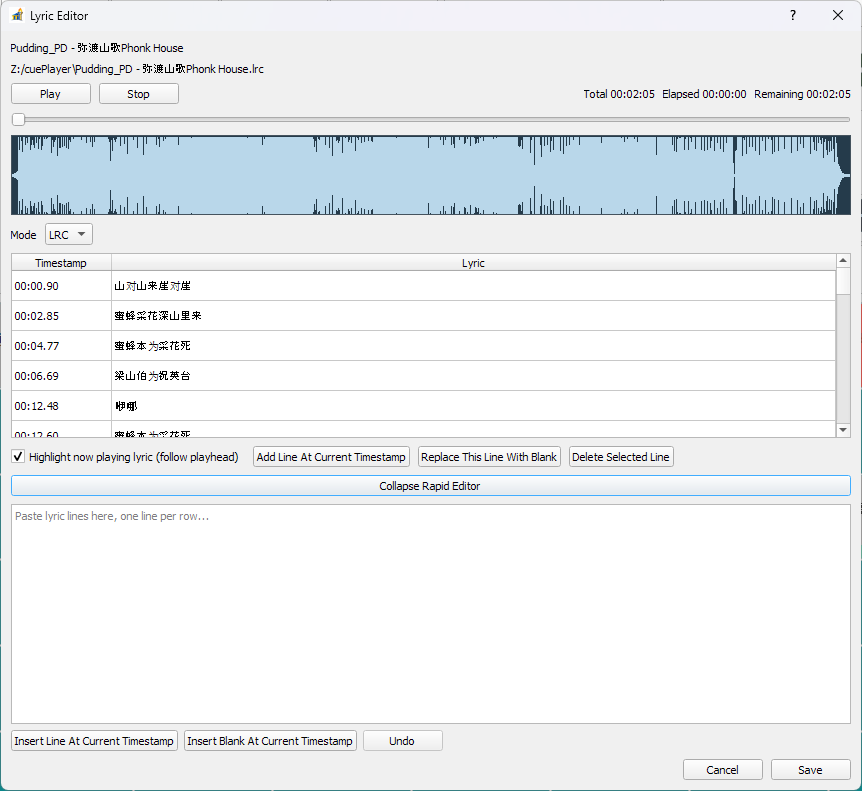
You can edit lyric timing/text in the lyric editor, including rapid edit tools.
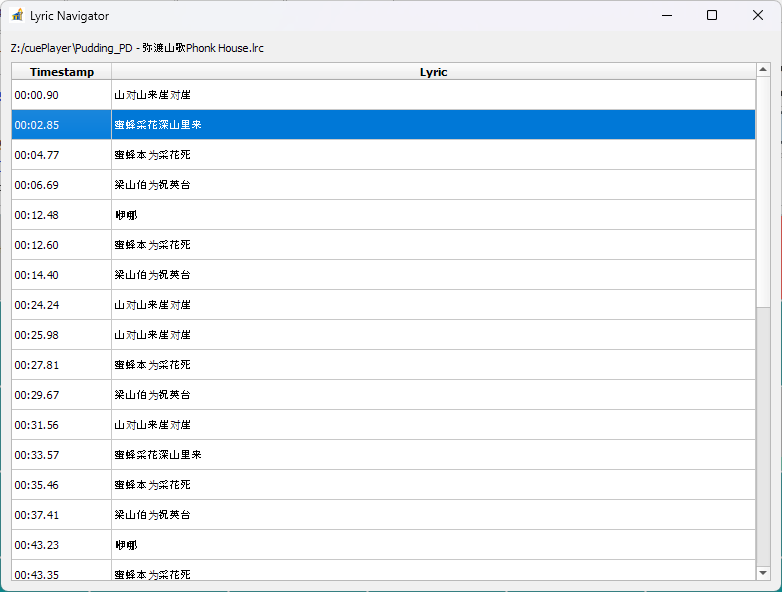
For runtime navigation, use Lyric Navigator to jump to lines/positions quickly.
Stage Display
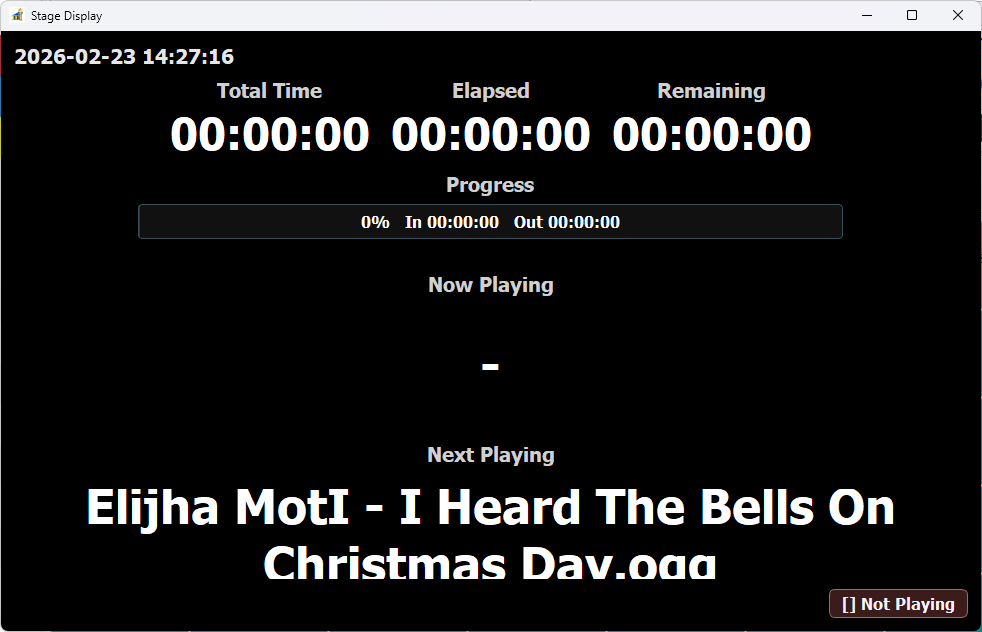
Stage Display can show live playback context (for example: song name, lyric, elapsed/remaining, progress, and alerts).
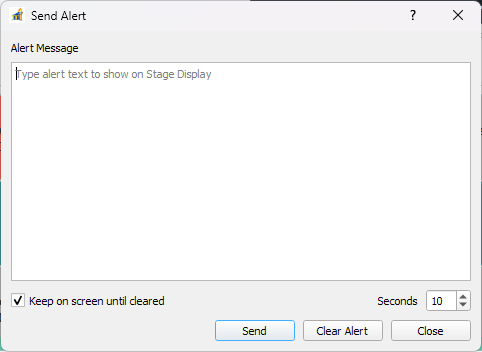
Alerts can be pushed to the Stage Display while the set is running.
How Timecode Works
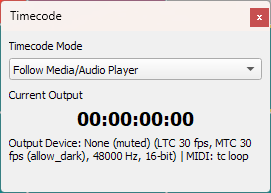
Timecode behavior is controlled by Audio Device / Timecode settings and reflected in the Timecode panel.
Core flow:
Choose a
Timecode Mode:All Zero: output stays at zero.Follow Media/Audio Player: output follows current playback position.System Time: output follows wall-clock time.Pause Sync (Freeze While Playback Continues): freezes timecode while audio can continue.
Choose
Timecode Display Timelinereference:Relative to Cue Set PointsRelative to Actual Audio File
Optional per-button behavior:
Enable soundbutton timecode offsetapplies button-level offsets.Respect soundbutton timecode display timeline settinglets a sound button override global timeline reference.
Select output type/device:
SMPTE Timecode (LTC)output target plus frame/audio format.MIDI Timecode (MTC)MIDI output and frame rate.
In live operation, this means lyric navigation, Stage Display, and timecode can all stay aligned to either cue-relative timing or absolute audio-file timing, based on your timeline settings.